How to Get a Google Maps API Key for Metro Driver
How to get a Google Maps API key for Metro Driver
Metro Driver uses your own Google Maps key for maps, route planning and delivery time estimates. Google bills your store directly. Nothing goes through us, and we never see your bill.
You will create two keys: a browser key for the maps your staff and customers see, and a server key for addresses and routes. Plan on five steps.
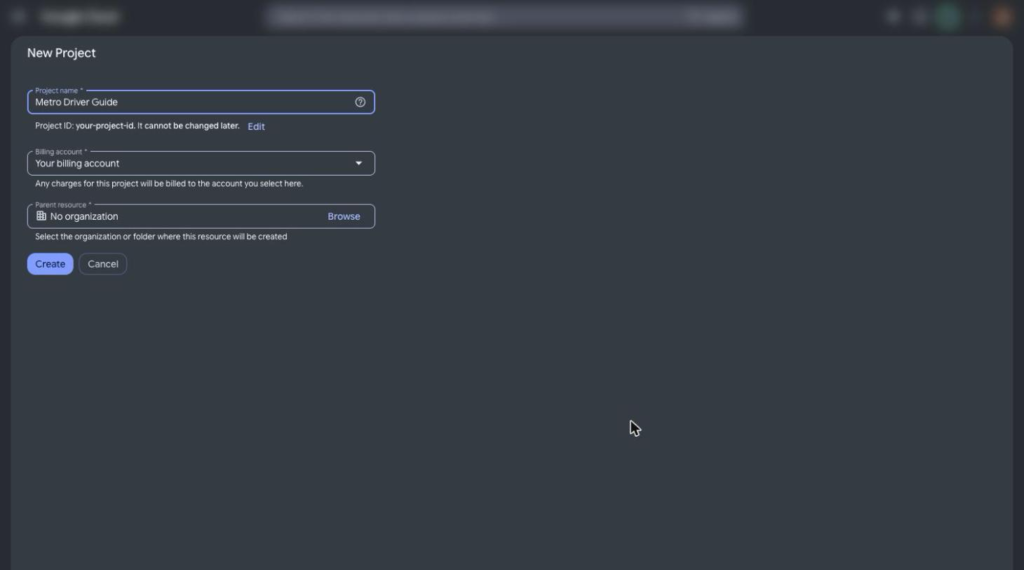
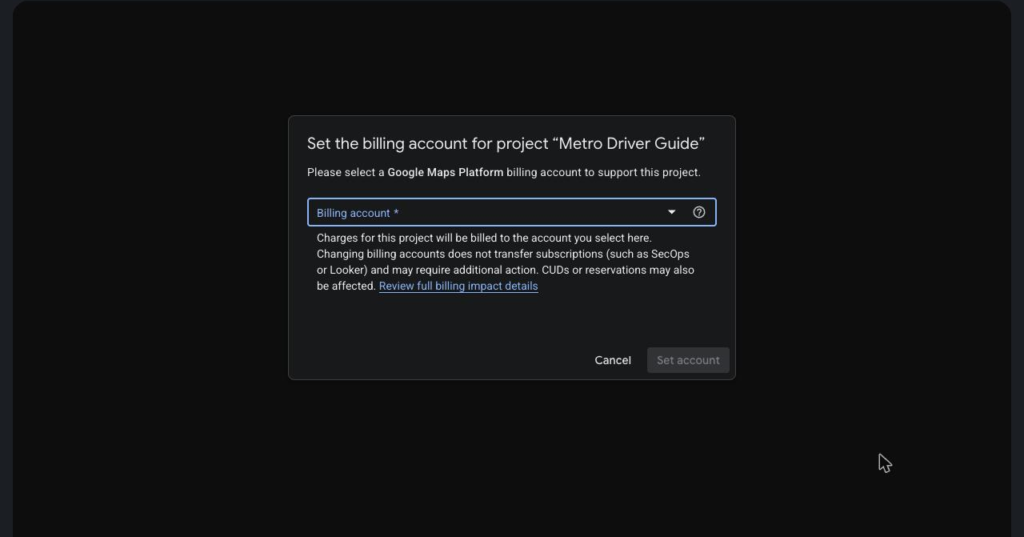
Step 1. Create a Google Cloud project and turn on billing
- Sign in to the Google Cloud console with the Google account your business owns.
- Create a new project. Name it after your store so you can find it later.
- Turn on billing for the project. Google requires a billing account before the Maps APIs will answer. Google’s free monthly credit applies.
Step 2. Enable the three APIs
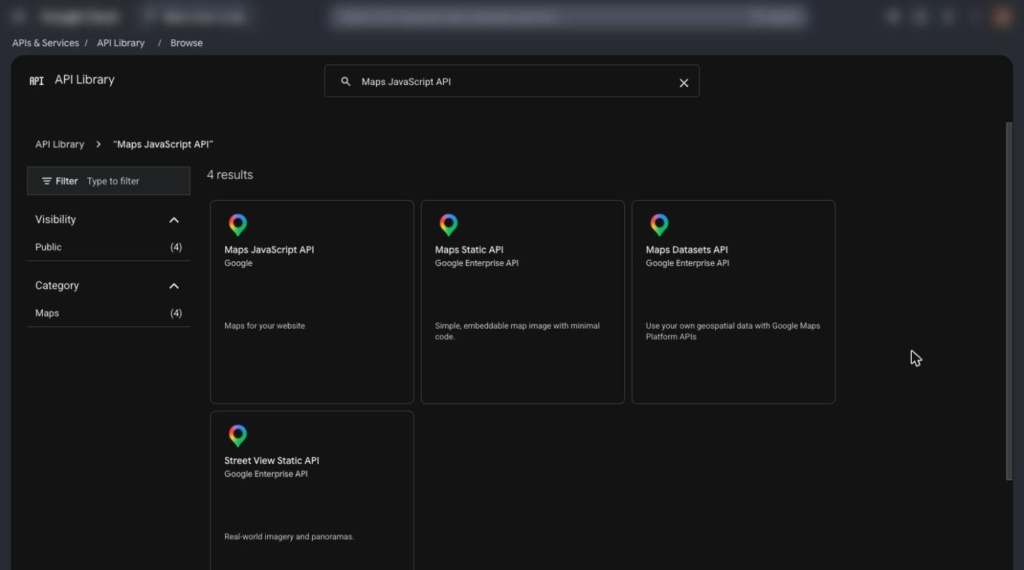
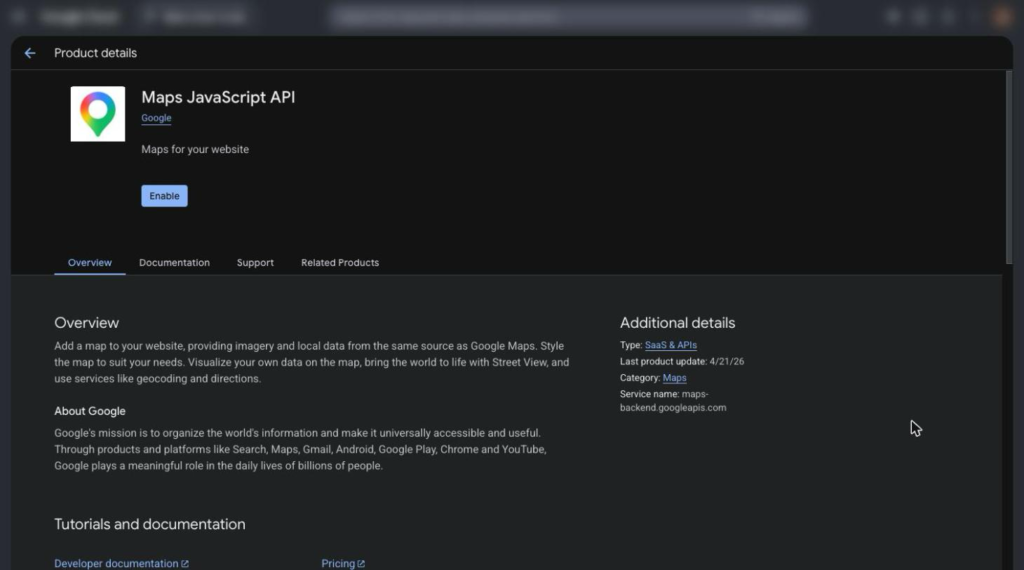
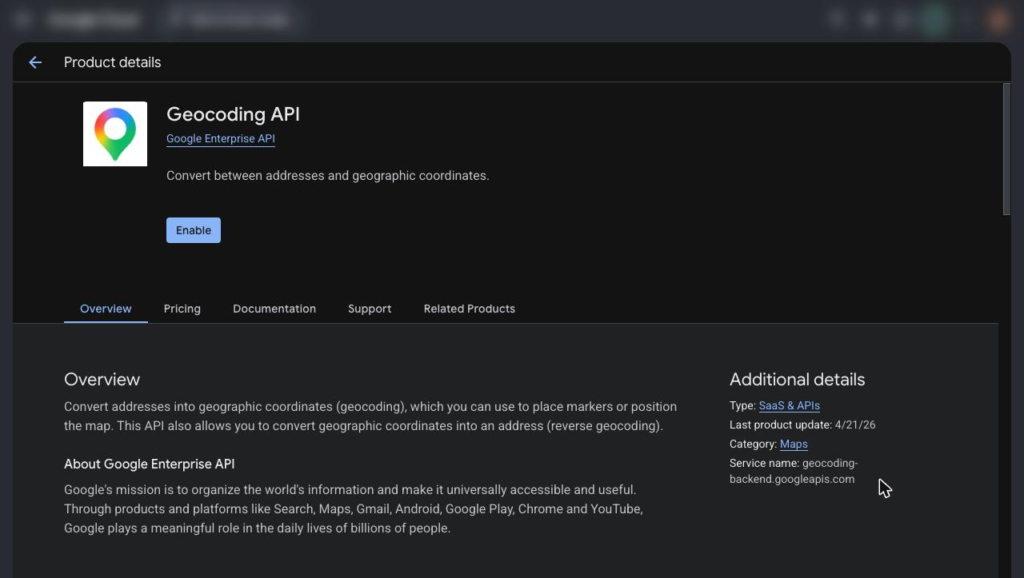
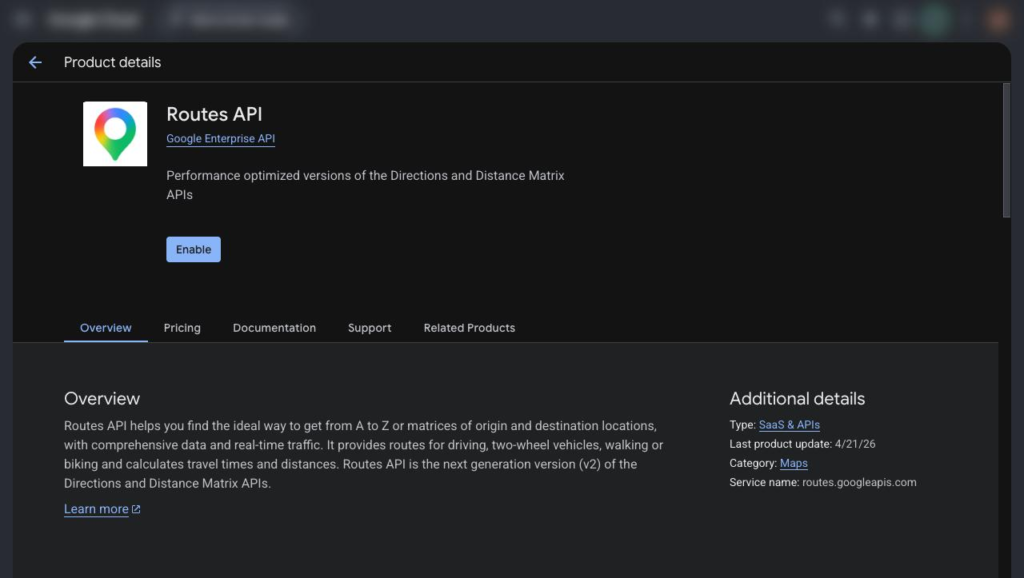
In APIs and Services, open the Library and enable each of these for your project:
- Maps JavaScript API
- Geocoding API
- Routes API
Metro Driver uses the Routes API to compute routes and route matrices. You do not need any other Maps API.
Step 3. Create two keys and restrict them
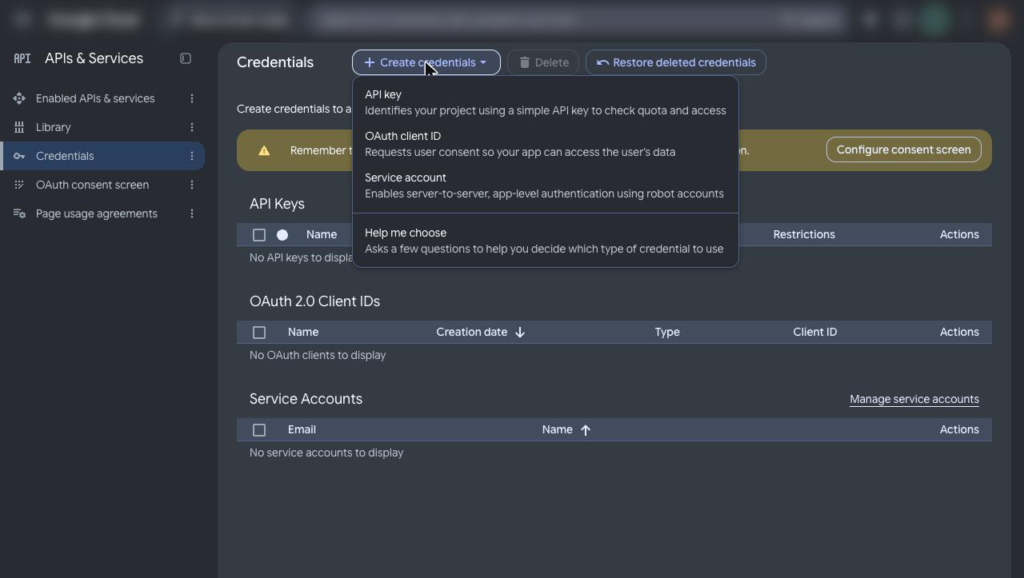
In APIs and Services, open Credentials and create two API keys.
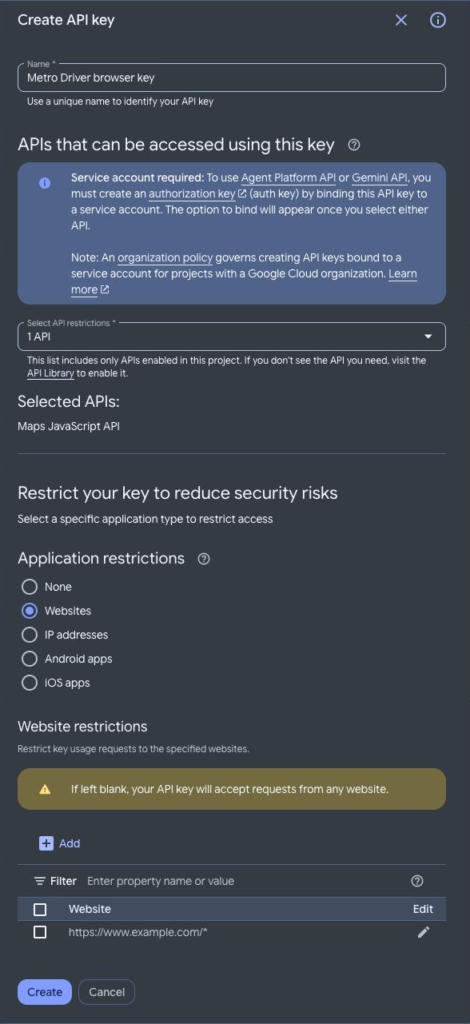
Browser key. This key is printed into your pages, so lock it down:
- Application restriction: websites, with your store’s website address
- API restriction: Maps JavaScript API only
Server key. This key is never printed into a page:
- API restriction: Geocoding API and Routes API
- Application restriction: the IP address of your web server, if your host gives you a fixed IP. If it does not, leave this off and keep the API restriction.
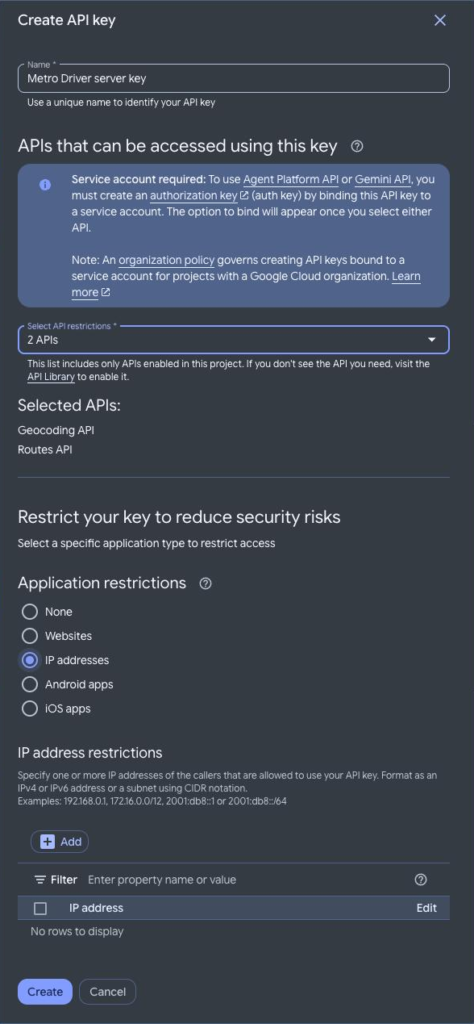
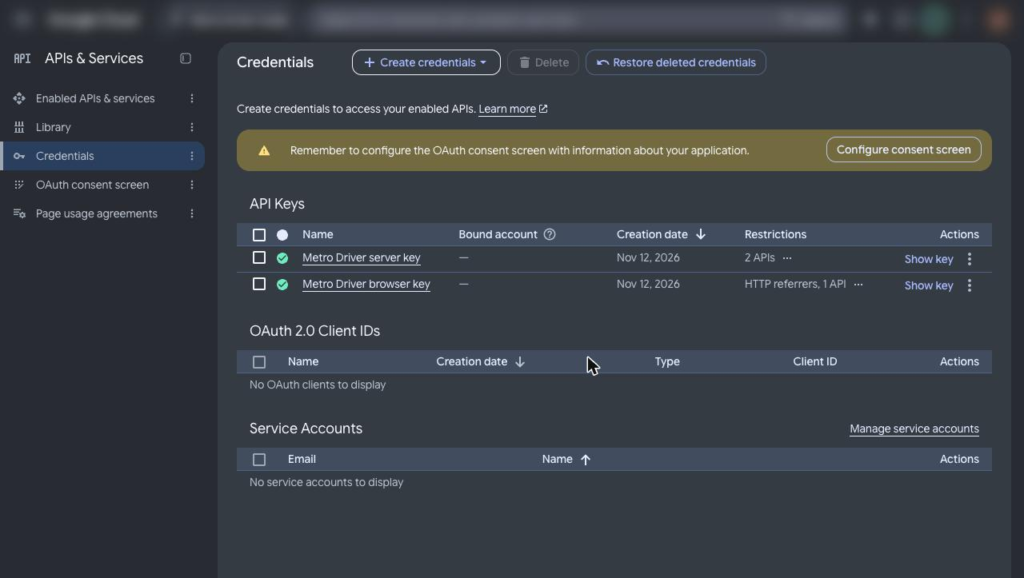
Step 4. Paste the keys into Metro Driver
- In WordPress go to Delivery Drivers > Metro Driver settings > Google API keys.
- Paste the browser key and the server key, then save.
- Press Test browser key and Test server key. The server key is tested right away. A website-restricted browser key is confirmed the first time a map loads.
- Set the daily caps. Metro Driver Pro has one for route matrix elements, one for route requests, one for geocoding requests and one for area-name lookups. The free plugin shows only the caps for the requests it makes. When a cap is reached, Metro Driver stops calling Google for that kind of request until the next day.
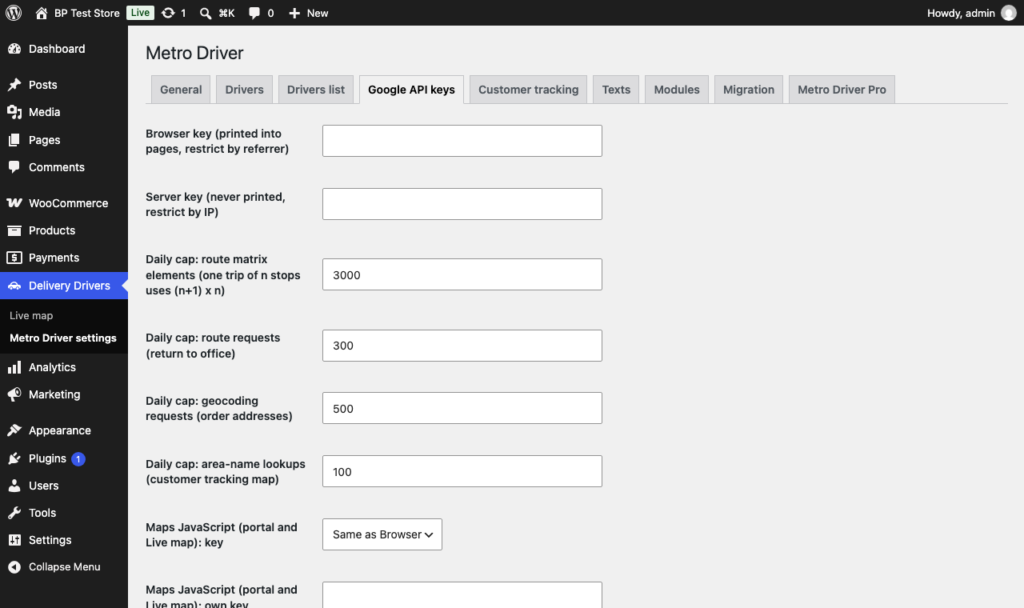
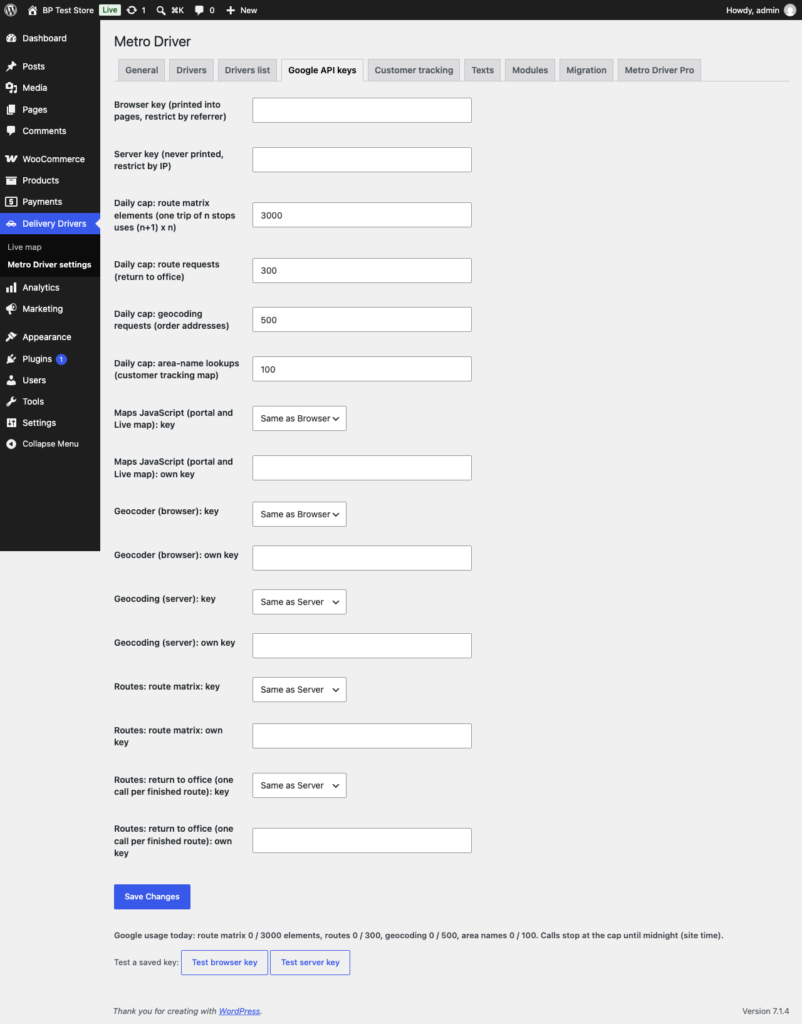
Step 5. Optional: set a budget alert
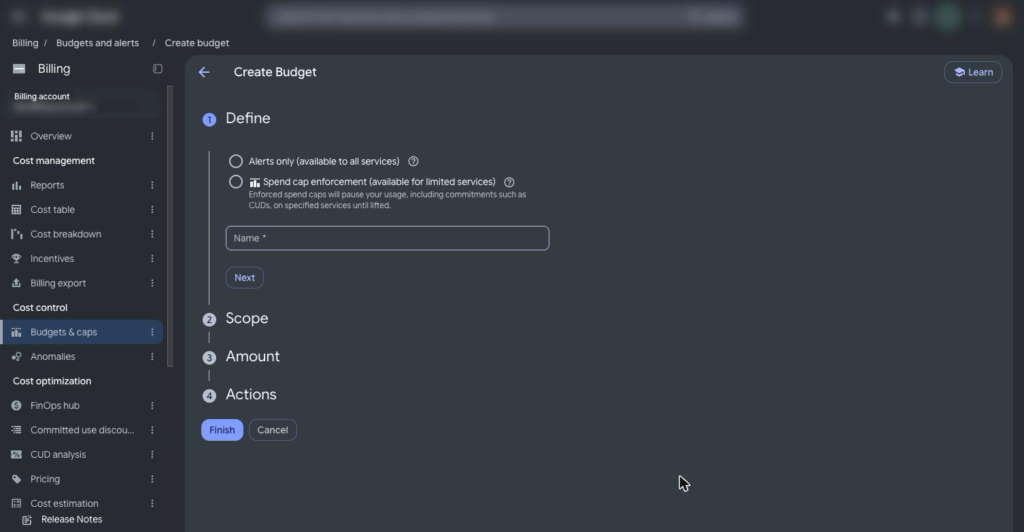
In Google Cloud billing, open Budgets & caps, press Create new, and make an alerts-only budget for the project. Google then emails you when spending reaches the amount you set. The daily caps in Metro Driver limit usage. The budget alert tells you if anything else on the project is spending.
What it costs
Google bills your store directly for what your keys use, and Google’s prices and free allowances change. Check Google’s current Maps Platform pricing before you go live. A typical store’s use stays small, and Google’s free monthly credit covers many small stores, but we cannot promise what your bill will be. The daily caps are there so a busy day cannot run up a surprise.
If a key does not work
- Check that billing is on for the project and all three APIs are enabled.
- Check that the browser key’s website restriction matches your store address exactly.
- If the server key has an IP restriction, check the IP with your host. Shared hosting often has no fixed IP.
- A message that Google calls are switched off or at today’s limit means a daily cap was reached.
Still stuck? Email [email protected] with the message the test button showed. Do not send the keys themselves.
Back to the Metro Driver docs or Metro Driver Pro.